

Move your Legacy templates to the new InvitariumMove your Legacy templatesto the new Invitarium
Transfer your existing widgets into the current Invitarium workspace without rebuilding them or replacing the Legacy links already in use.
Everything movesin one guided flow
This migration is for anyone who created interactive widgets in Legacy Invitarium and wants to keep editing them in the current platform. Starting November 1, 2026, new widgets can no longer be created in Legacy. Your existing work can move with its settings, responses and live links intact.
- 1
Connect the right account
Choose the current Invitarium account that should own and manage your Legacy templates.
- 2
Choose what to migrate
Review your Legacy folders and move everything at once or select only the templates you still use.
- 3
Continue in Invitarium
The migrated templates appear in one Legacy Templates folder while their existing public links keep working.
What migration preserves
Your widget setup
Countdowns, RSVP forms, maps, music players and calendars move with their current content and appearance.
Your uploaded files
Media connected to a migrated template remains available with that template in the current Invitarium.
Your RSVP inbox
Existing replies move with the RSVP form, and new submissions continue in the migrated form's Responses area.
Your published links
Legacy URLs already used in websites and Canva designs continue opening the migrated widgets.
For sellers
Migrated widget and shared-folder links stay the same, so you do not need to update delivery files, listings or Canva templates. A migrated widget that is not already covered by your plan receives 14 days of free access. Shared-folder links still require a plan that includes folder sharing.
For personal use
If you made a music player, RSVP form, or another widget for a template or event, migration is optional. Existing widgets continue working for free on Legacy, music keeps playing, RSVP forms keep accepting replies, and your responses remain available. Only creating new widgets closes after November 1, 2026.
Migrate from start to finish
01
Start migration in Legacy
Sign in to the Legacy dashboard and select Migration in the banner. Invitarium opens a separate window for the account connection.
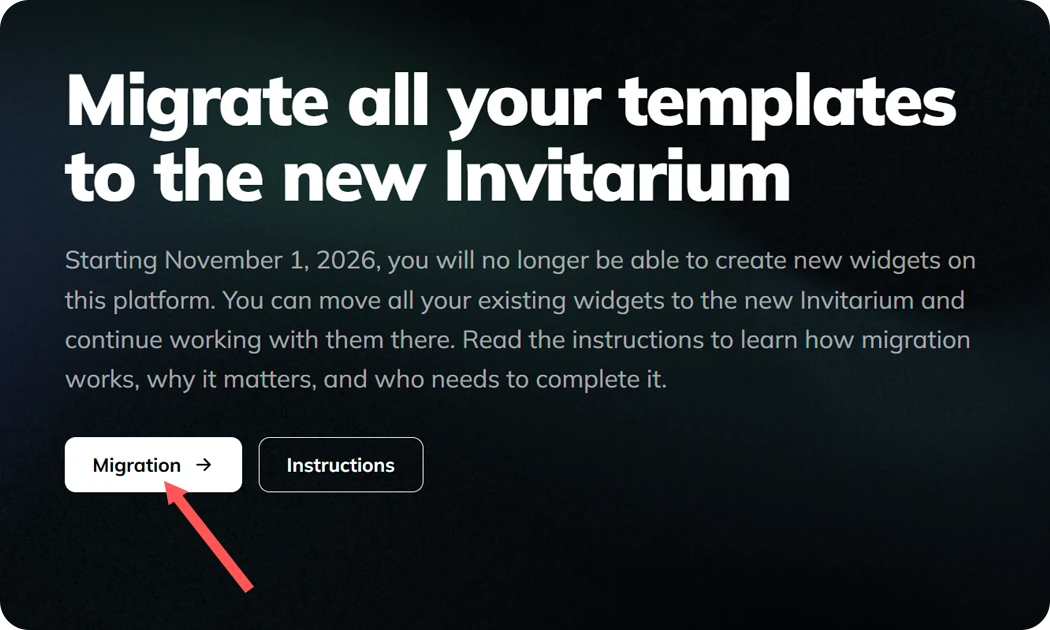
The Migration action on the Legacy dashboard 02
Choose the destination account
Sign in or create an account if needed. Check the name and email carefully, then select Connect this account. This is the account that will receive the migrated templates.
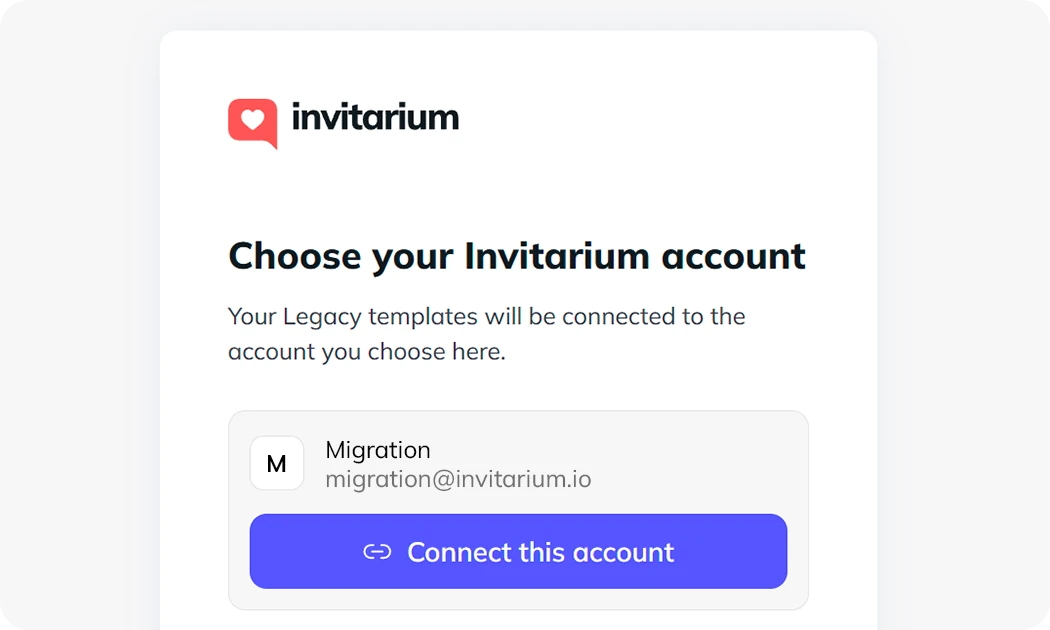
Choosing the current Invitarium account for migration 03
Return to the template picker
When the connection is confirmed, select Done. The account window closes and the migration picker opens inside Legacy. Future migrations between the same connected accounts open the picker directly.
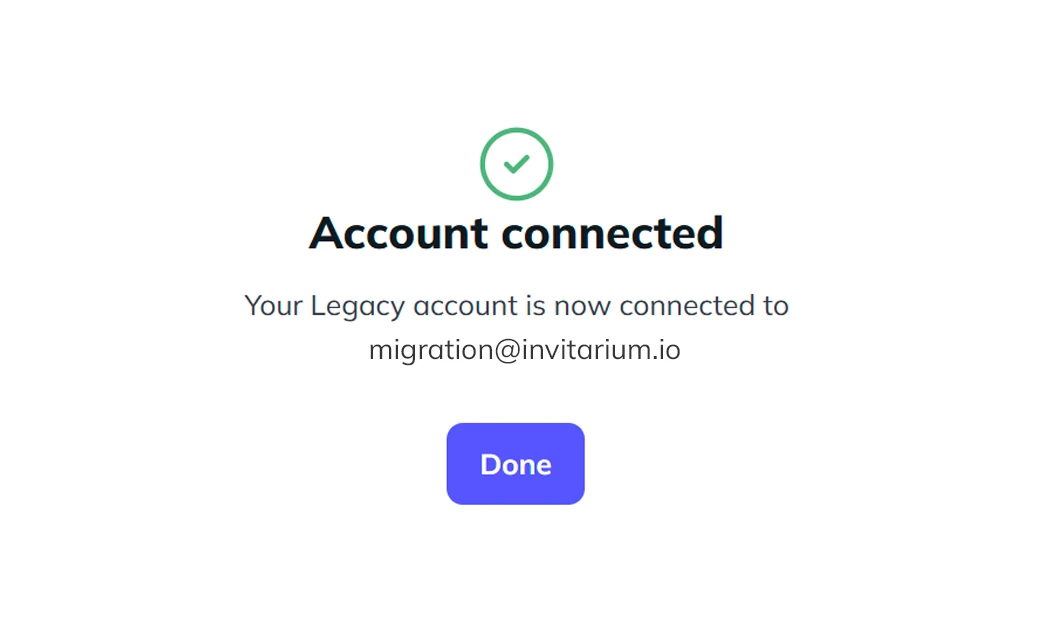
The connected-account confirmation before the picker opens 04
Select the templates you need
Available templates are selected by default. Clear individual items or entire folders you do not want to move. Selecting a folder also includes available templates in its nested folders. Items marked Already migrated or Unavailable cannot be selected.
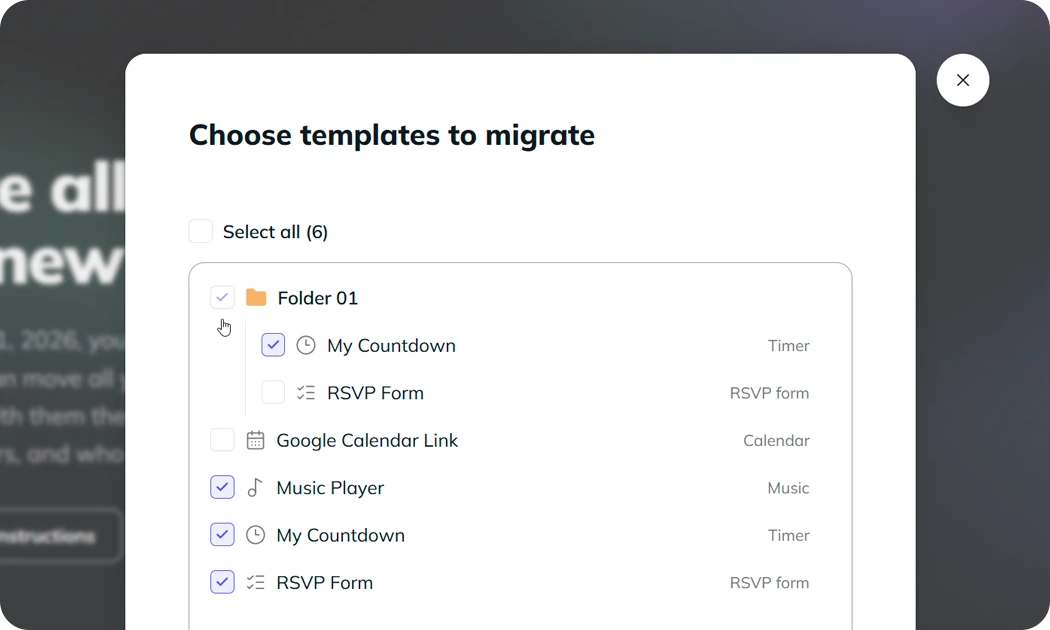
Legacy folders and templates selected in the migration picker 05
Confirm and migrate
Confirm that you have read the instructions, then select Migrate selected. Keep the window open while Invitarium moves the templates and transfers their Legacy links. If the transfer reports an error, use Try again.
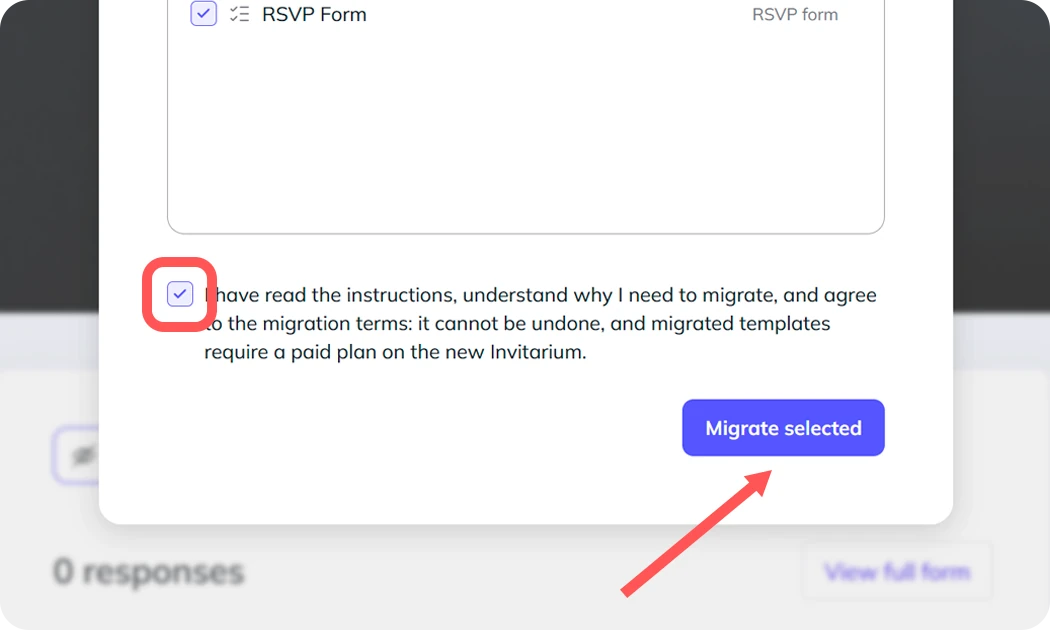
Migration progress while templates and Legacy links are transferred 06
Open the migrated set
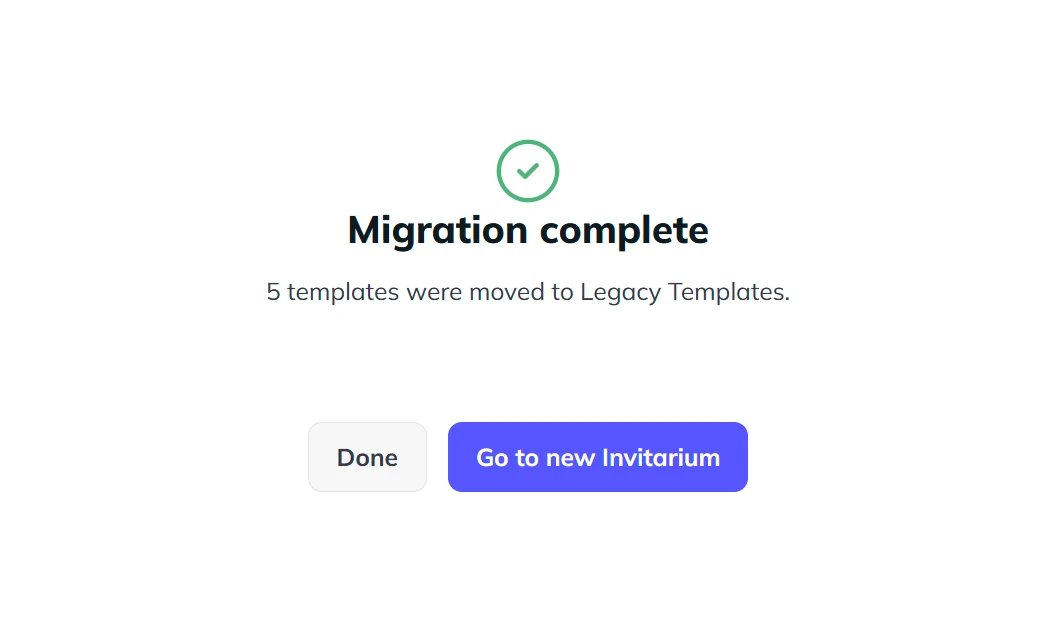
After Migration complete, select Go to new Invitarium. Open Projects and find Legacy Templates. The successfully migrated items no longer appear in your Legacy dashboard.
Migrated templates organized in the Legacy Templates folder
Move templates from another Legacy account
You can migrate several Legacy accounts into the same current Invitarium account, one at a time. The templates already moved into Legacy Templates stay there when you disconnect the first Legacy account.
01
Open Integrations
In the current Invitarium, go to Settings and open Integrations.
02
Disconnect Legacy
Under Legacy Invitarium, select Disconnect and confirm. Migrated templates and their working links remain active.
03
Start from the next account
Sign in to the other Legacy account, return to its dashboard and select Migration again.
Frequently asked questions
Move your templates when you are ready
More for sellers
- Share your designs
Deliver a complete Invitarium site or the live widgets behind a Canva template from one reusable link. Every buyer receives an independent copy while your master stays untouched.
- Make Canva templates interactive
Add live RSVP forms, countdowns, music and more to a Canva invitation, then give every buyer independent widget copies they can personalize.
- Connect your own widget copy to Canva
Turn the seller's Canva template into your own working website. Personalize the included widgets, connect your links and keep every RSVP, date and detail under your account.