

One page for every way to reach youOne page for everyway to reach you
Give guests one place to call, write, or choose another way to reach you. Share it directly or link to it from a Canva button.Give guests one place to call, write, or choose another way to reach you.Share it directly or link to it from a Canva button.
Be easy to reach when guests need you
Bring your phone, email, messaging apps and useful links into one page that feels like part of your invitation. Guests open one link and choose the contact option that works for them.
Get your page ready in three steps
Add the details your guests need, test every contact option, and decide whether to share the page directly or link to it from your invitation.
- 1
Add your details
Introduce yourself and choose the contact options you want guests to see.
- 2
Check the page
Preview the guest view and test each contact destination.
- 3
Share the link
Copy the page URL and send it directly or place it behind a button.
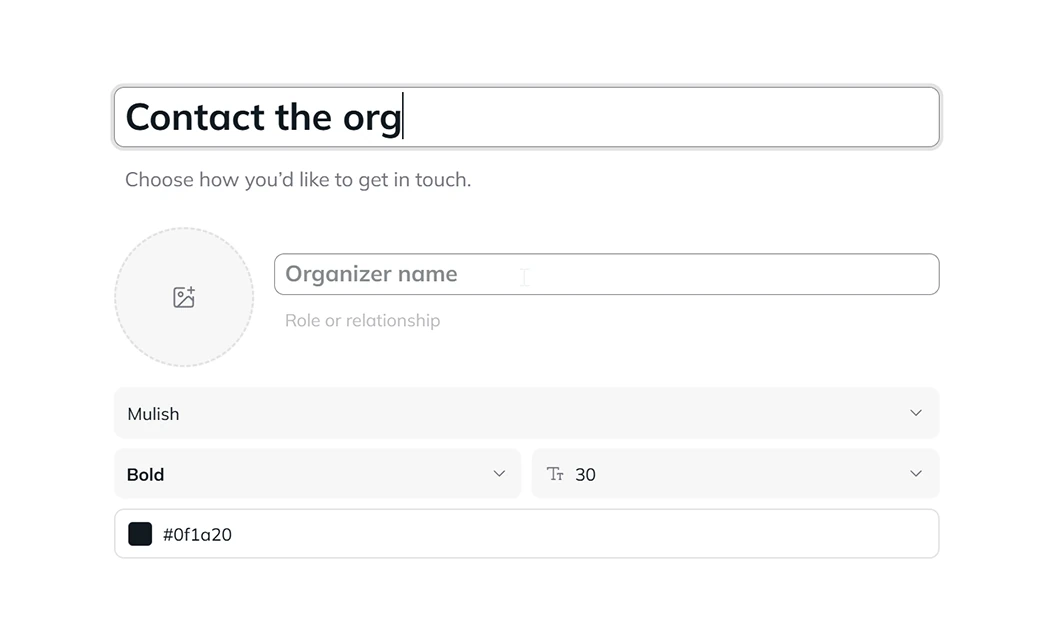
Make the page feel like yours
Set a title, a short introduction and a background. Add an organizer photo, name and role if guests need to know who they are contacting.
- Style the page text and contact buttons.
- Preview the same page on desktop and mobile.
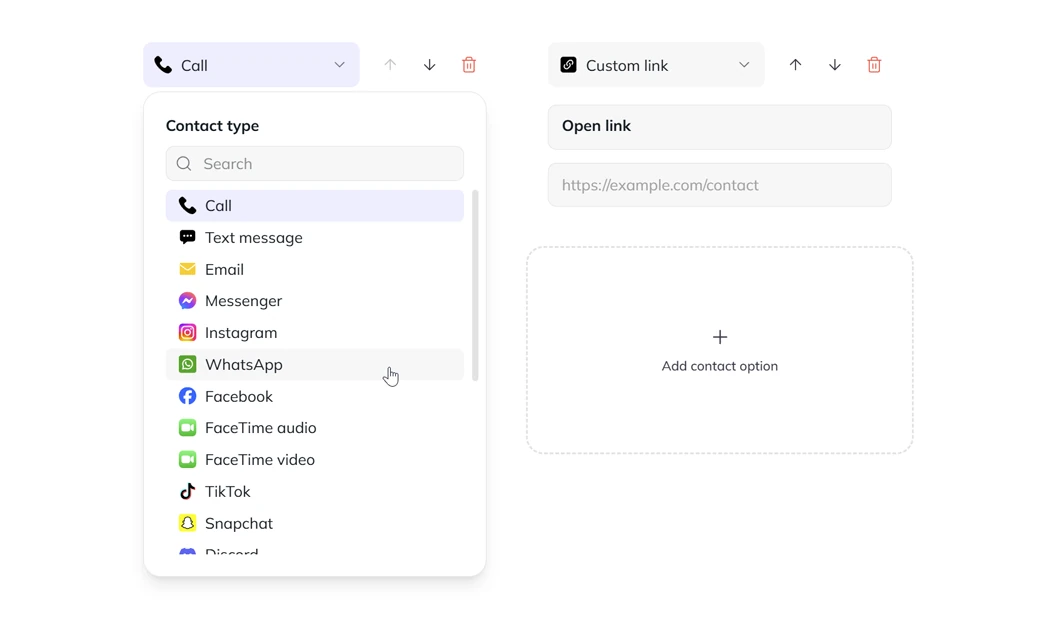
Offer the ways to reach you
Add the channels that make sense for your event: calls, texts, email, messaging, social profiles, meeting links, a website or a custom link. Name each button for the action a guest should take.
- Arrange up to 20 contact options in one place.
- Guests can copy an email address instead of opening an email app.
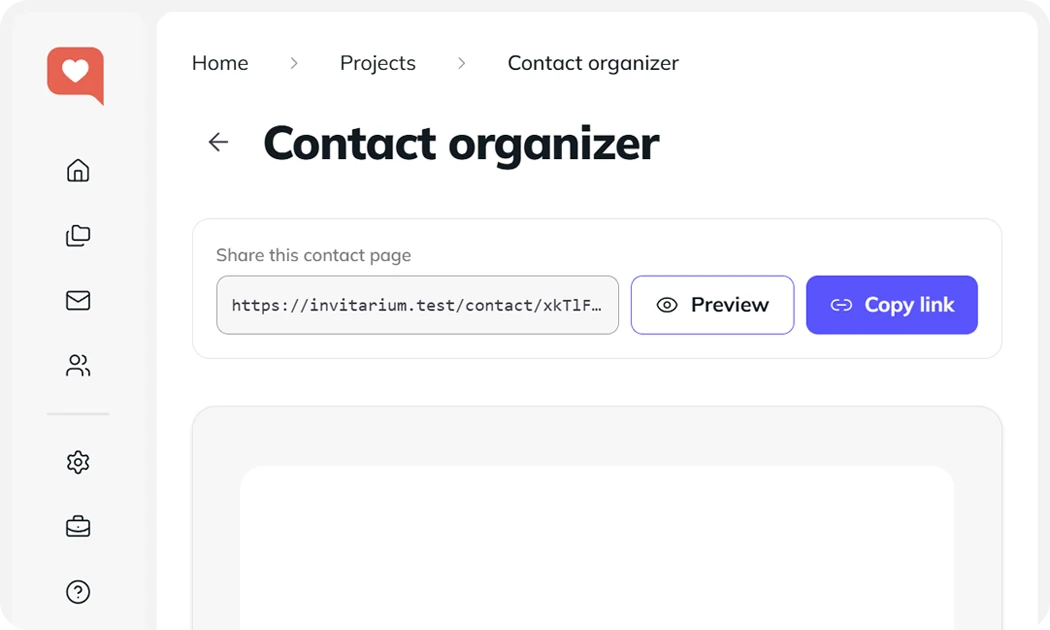
Use it as a standalone page
The copied URL opens a complete contact page hosted by Invitarium. Send it in a message or email, put it in a social profile, or link to it from your own site. Guests choose how to reach you after opening it.
- No Canva design or iframe embed is required.
- Update contact details later without changing the link.
Link it from a Canva website
If your invitation is a Canva website, assign the contact-page URL to a button or another linked element. It opens the same standalone page as a regular link, not an iframe embed. Follow these three steps:
01
Copy the page link
Preview the contact page in Invitarium to check the guest view, then use Copy link in its editor.
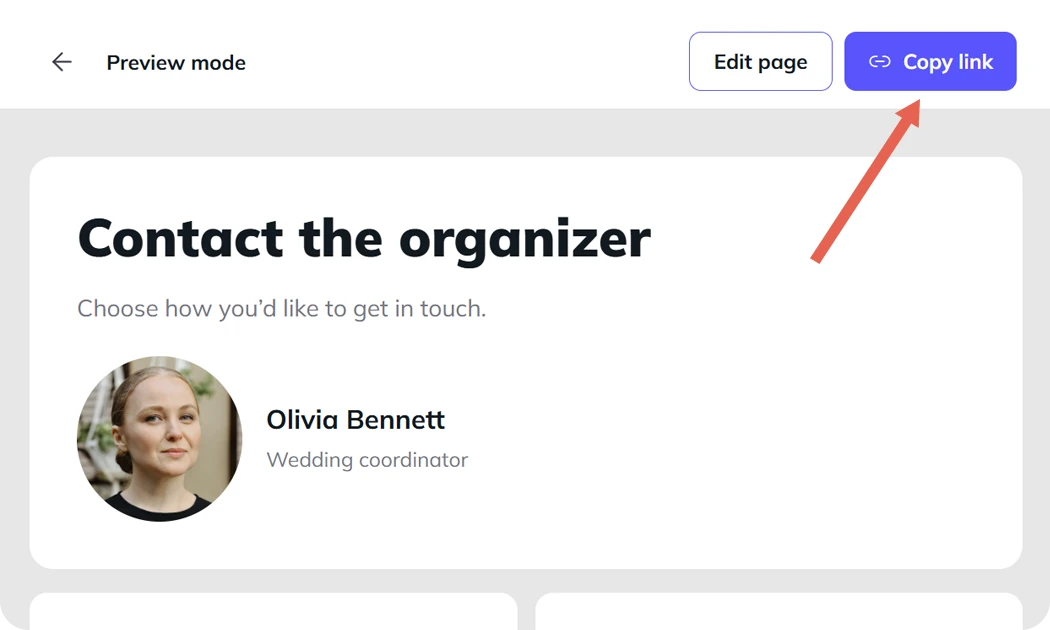
The Copy link control in the contact-page editor 02
Link the Canva button
Select the button or another linked element in your Canva website and assign the copied URL.
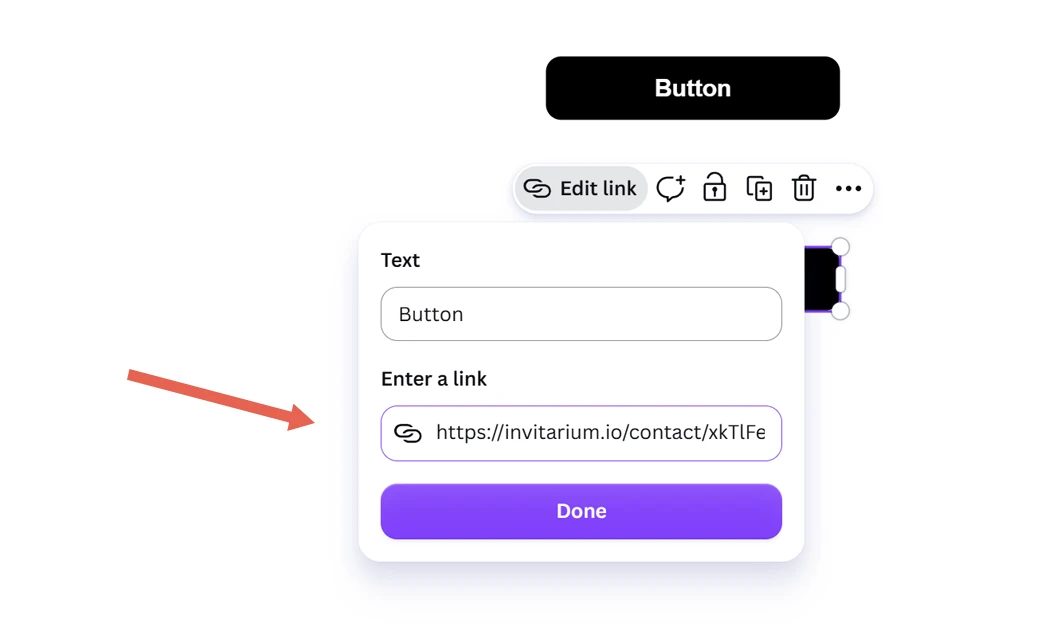
A Canva website button linked to the contact page 03
Test the published page
Open the published Canva website on a phone, follow the button and try each contact option.
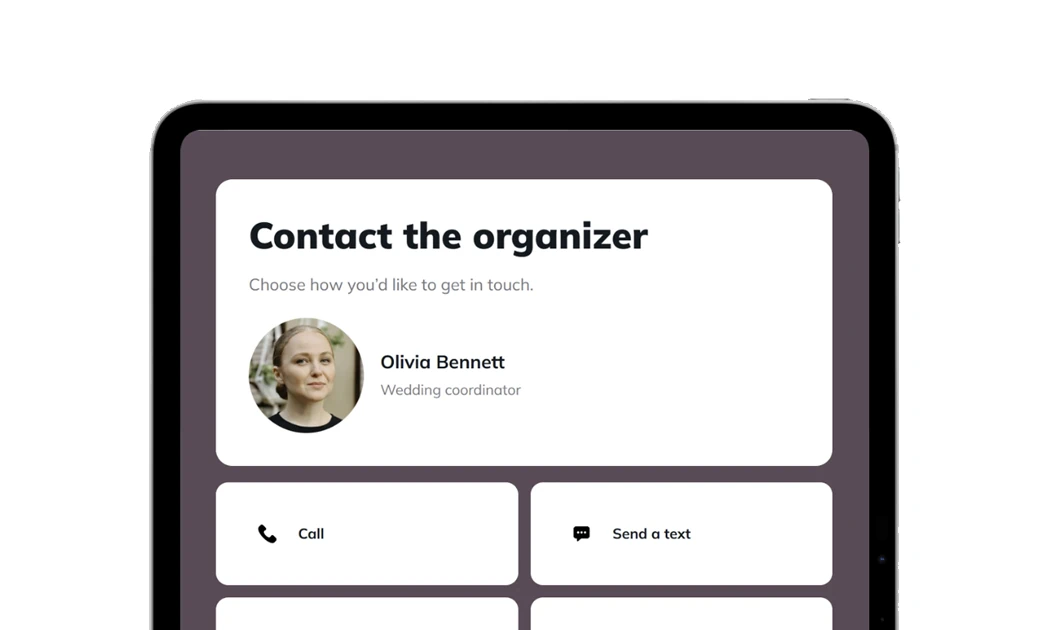
The contact page opened from a published Canva website
Frequently asked questions
Read the how-to in the Help Center
Give guests one clear place to reach you
Related guides
- Make Canva templates interactive
Add live RSVP forms, countdowns, music and more to a Canva invitation, then give every buyer independent widget copies they can personalize.
- Share your designs
Deliver a complete Invitarium site or the live widgets behind a Canva template from one reusable link. Every buyer receives an independent copy while your master stays untouched.
- Connect your own widget copy to Canva
Turn the seller's Canva template into your own working website. Personalize the included widgets, connect your links and keep every RSVP, date and detail under your account.